The Magazine Editor
With the magazine editor you can easily insert Palview commands (with the right syntax!) into your magazine template HTML source. Of course you can also edit the text like with any other editor, and there are some basic HTML tools available like insertion of links with correct relative URLs, image links and more.
Here's a screenshot of the editor and the menu displayed, when the editor is the active window:
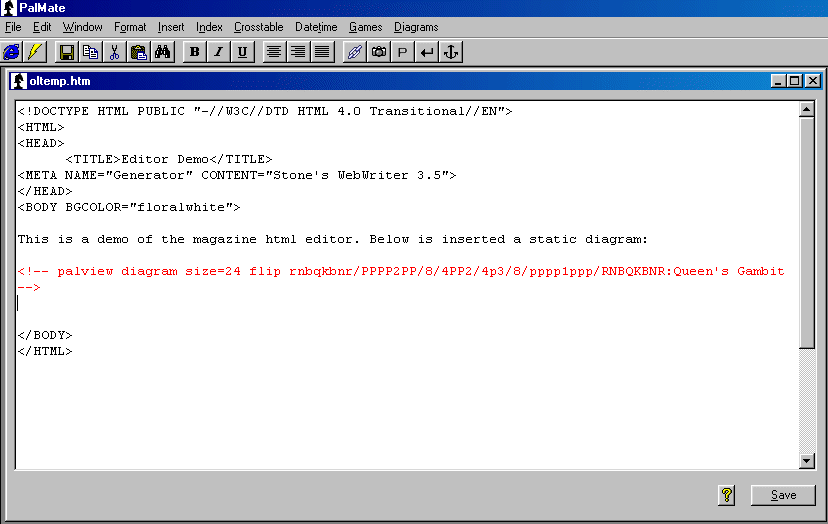
Commands to Palview are inserted as HTML comments (red text in the screenshot above). The various commands are selected from the menu above or from the pop-up menu that appears if you right-click the text area. The editor also has a diagram setup utility that will generate the FEN-string necessary for inserting a static diagram.
Some basic HTML commands/tools can be accessed from the "Format" and "Insert" menus or by clicking buttons on the toolbar.
The Editor Menu
If we go through the menu items one by one it will give you an impression of how the whole thing works.
File Menu
- Save Html Template. This will save the HTML template as it appears in the editor text window. It is necessary to save the HTML template to see any changes when you preview the page(s) in the built-in browser.
- Revert To Saved. Loads the last saved version of the HTML template.
- Restore Original Template. Restores the template you first loaded into PalMate.
- Insert File (*.txt;*.htm). Tells Palview to insert another HTML or text file. The files that can be legally inserted are simple Text files (extension '.txt') or Html files (extension '.htm'). File insertion can be useful for inserting material into your magazine from other sources. Note that the files to be inserted must reside in the same folder or directory as the Html template file.
Edit Menu
Ordinary copy, cut, paste and find operations.
Format Menu
Menu for HTML formatting commands/tags. Selected text will be marked bold, italics, underlined, centered, as header etc.
Insert Menu
Inserts HTML tags for paragraph, linebreak, horizontal line, hard space or named anchor (a bookmark you can link to).
There's also a "Link" menu item. With this you can select a local file, and PalMate will insert a link with the correct relative URL. For this to work the file must of course also exist on your server.
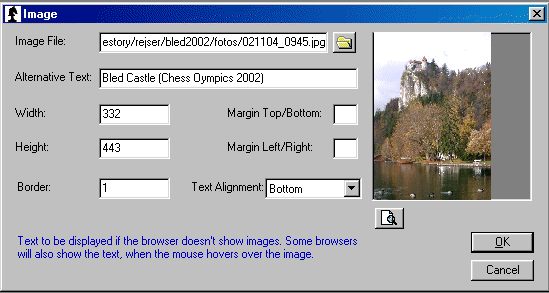
Finally there's a dialog that will help you to insert images. You can preview gif, jpg, jpeg and bmp images.
Index Menu
Now we get to the menus that deal with Palview command insertion. From the Index menu you can insert a games index or an opening index. For a more detailed description of these indexes see the Palview Manual.
Crosstable Menu
From this menu you can insert crosstables and control various crosstable settings such as if the results displayed should link to the relevant game pages, the name format of the players and more. The crosstable commands are only necessary if you want the crosstable to be displayed differently than the default way, which is defined when the magazine is the active window. Beware that all games from the event must be in the pgn file.
Datetime Menu
Will insert current date and time in the format you choose.
Games Menu
From the Games menu you can insert gamelinks (that will produce a gamepage for each link), static games and various commands concerning static games.
- Insert Links To Dynamic Games. Active gamelinks.
- All Games One Event (Html table). Inserts gamelinks for all games from one event in a crosstable-like HTML table and produces gamepages too, unless this is switched off in the Magazine Options menu. If there are games from more than one event, PalMate will ask which event you want to process.
- All Games One Event (not in table). Like above, but the gamelinks aren't put in a table. If you set Write Gamelinks in the Magazine Options menu to OFF, you can make a game index with links to the games and avoid a second long list of gamelinks.
- All Games In Pgn File. Like "All Games One Event (not in table)", but all games in the pgn file are included.
- Some Games. Inserts gamelinks for the games you select from a list.
- Insert Static Games. Inserts static games (game text and optional diagram) directly into your magazine. The games will not be re-playable and gamepages will not be made. You select the games from a list.
- Static Game Commands. A fairly long list with various options that will decide the formatting of static games. It is important to say that these commands are only necessary if you want something displayed differently from the default fashion, which is set the usual way when the magazine is the active window.
Diagrams Menu
Helps you insert static diagrams into your magazine.
- Insert Static Diagram.
Opens the diagram setup utility and inserts a static diagram. To insert a piece on the board: left-click on the piece in the "piece-box" and then on the target square. To remove a piece from the board: click with right mouse button on the piece.
The setup utility is also used in the Pgn Editor to setup start positions or diagrams.
Notice the special "pieces": the cross, circle and dot. You can use these just like pieces to mark empty squares.
- Final Position Selected Games. You select games from a list, and static diagrams of the final positions will be inserted.
- Number Of Columns (final position diagrams). Determines if the final position diagrams shall be displayed side by side and in how many columns.
Top
PalMate Help Index * PalMate Main Page * The Palview Home Page * En Passant Home
